Langara Alert
Langara Alert is the College’s critical notification system designed to keep you informed during time-sensitive situations on campus, via email, SMS messages and Langara Safe app notifications.
About Langara Alert
Powered by Rave Alert, Langara Alert sends notifications about emergencies or disruptions such as:
- Weather-related campus closures
- Building evacuations
- Safety or security threats on campus.
All students and employees are automatically enrolled to receive alerts through their Langara email.
To also receive SMS text messages, you must ensure your mobile number is current:
Students
1. Visit: https://www.getrave.ca/login/langara
2. Review the Terms of Use and click on Submit
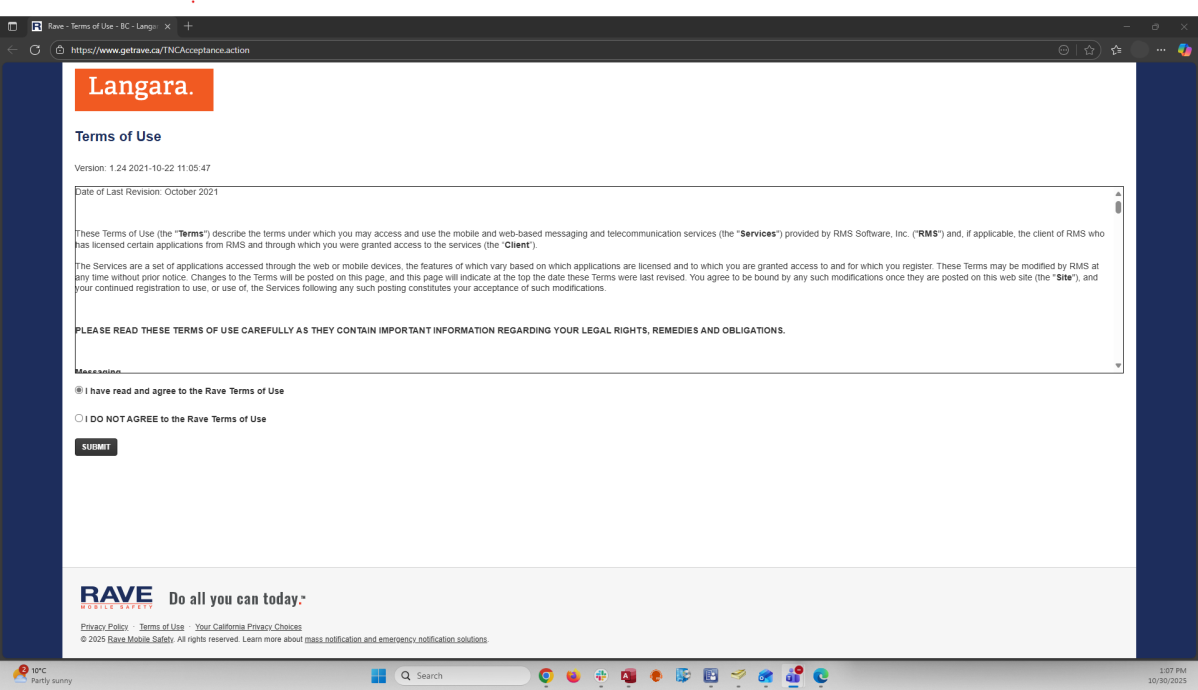
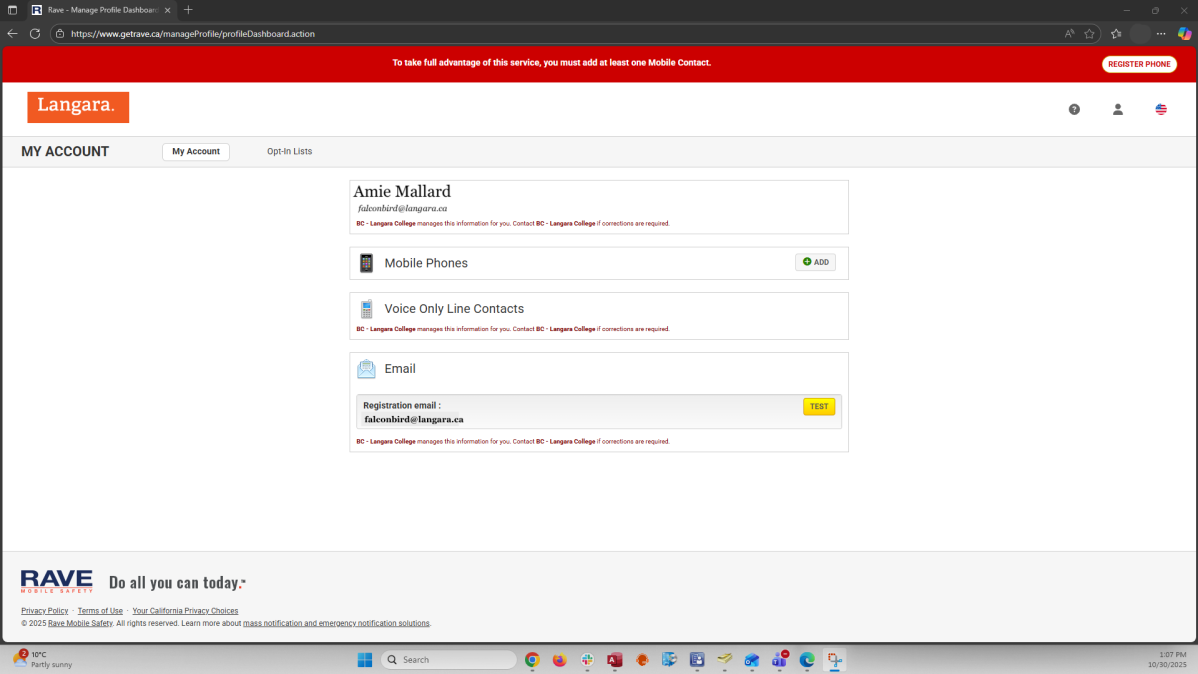
3. Once on the main homepage, find the Mobile Phones section and click Add
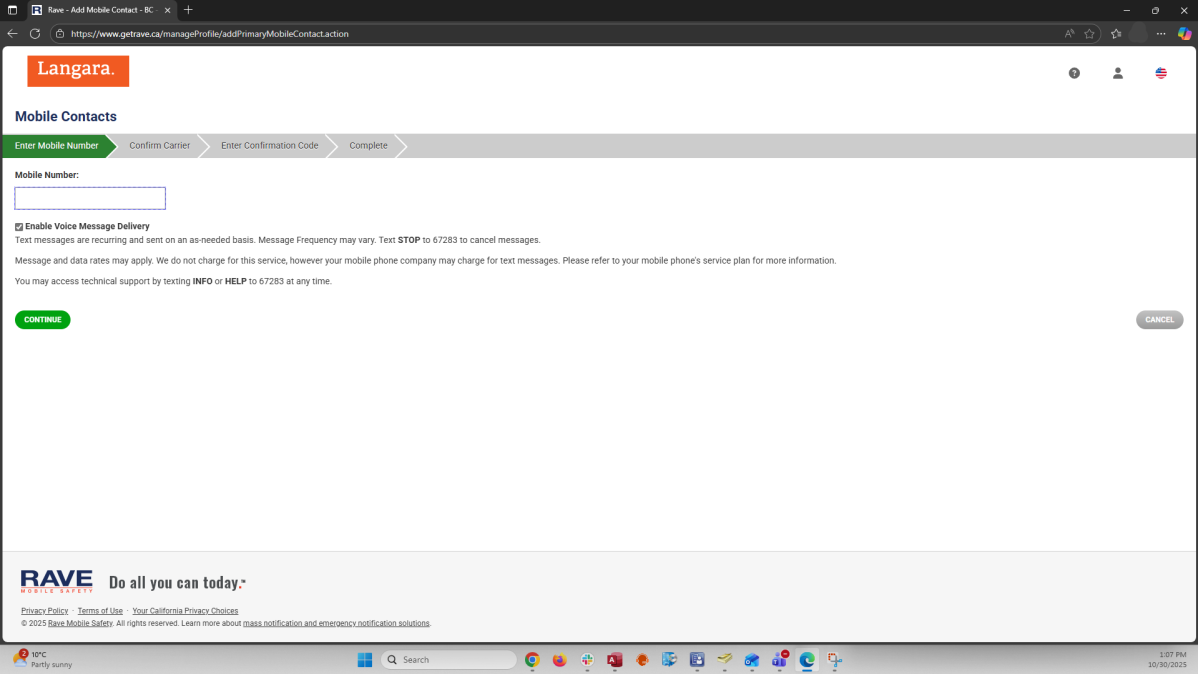
4. Enter your mobile number and click on Continue
5. Confirm your mobile carrier from the list and click on Continue
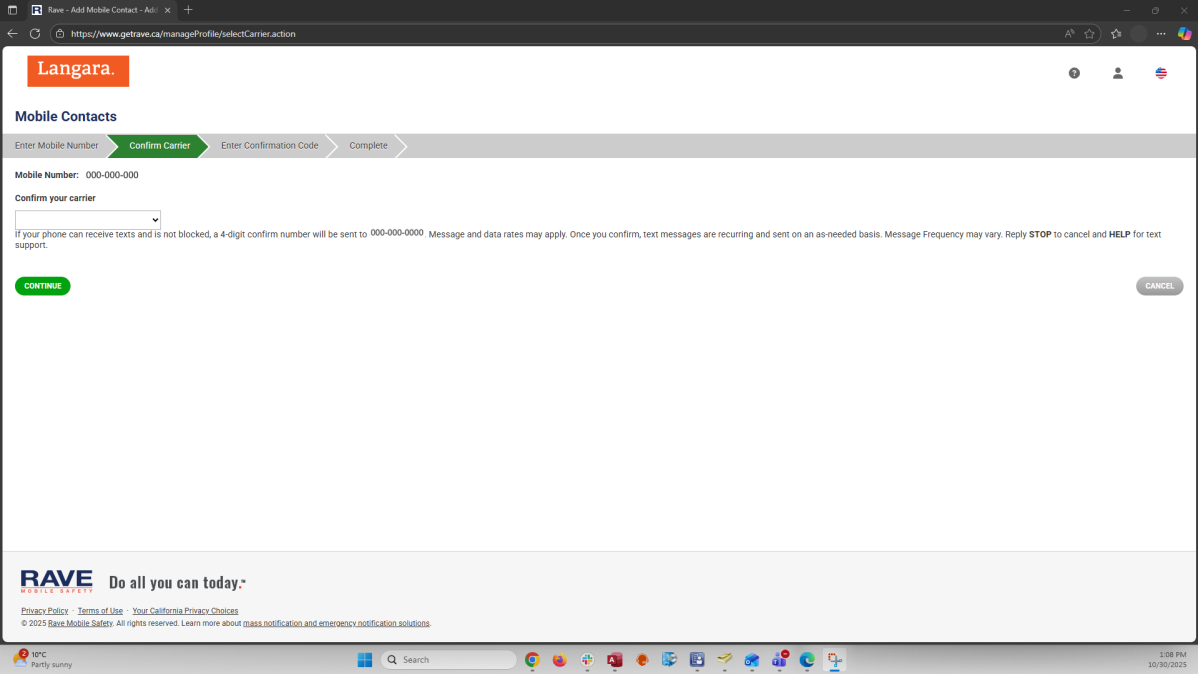
Langara Alert will send you a confirmation code to your mobile number
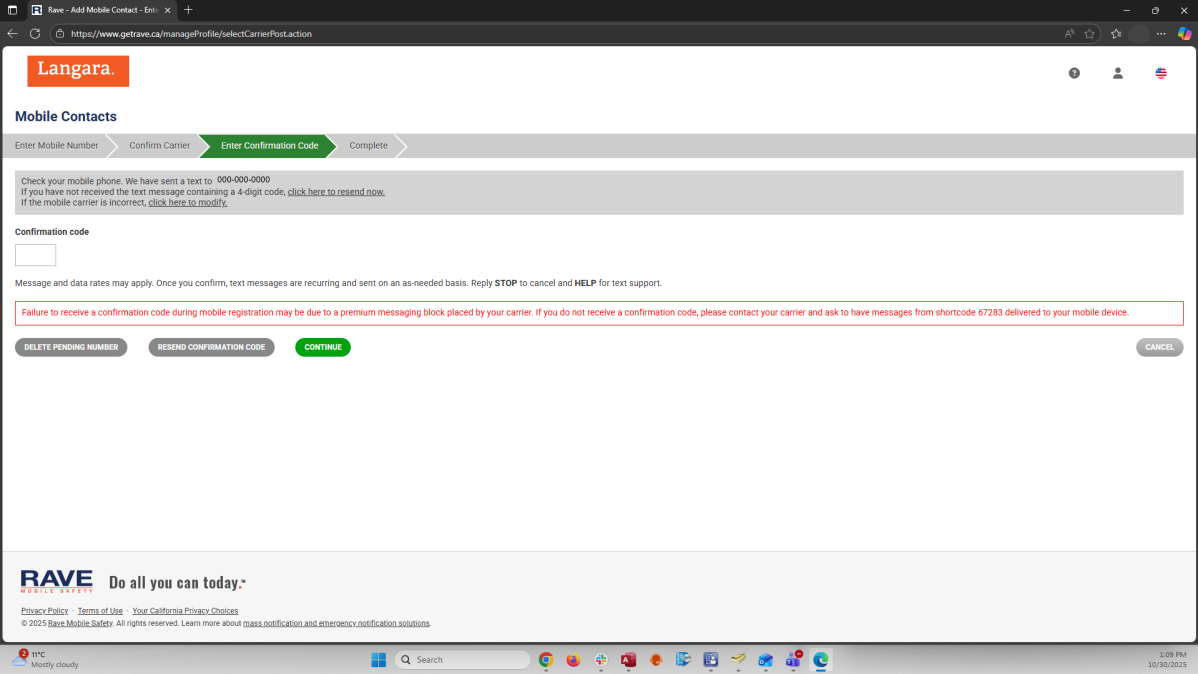
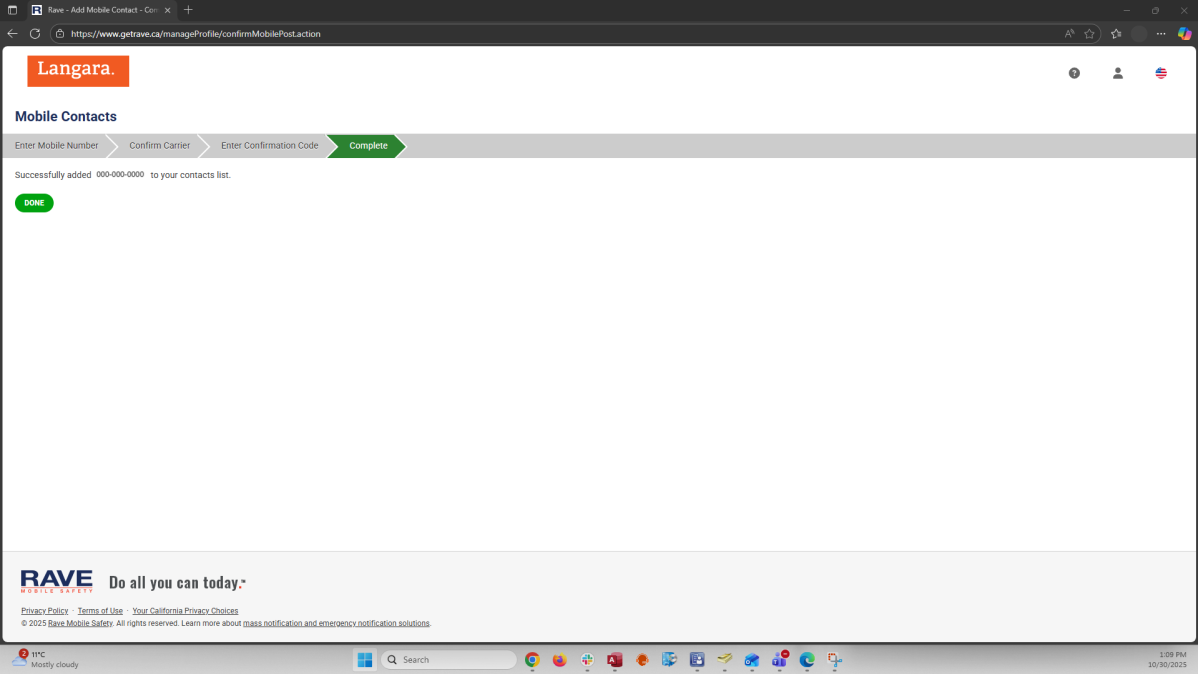
6.Enter the Confirmation code and click on Continue. When all the steps are complete, click on Done.
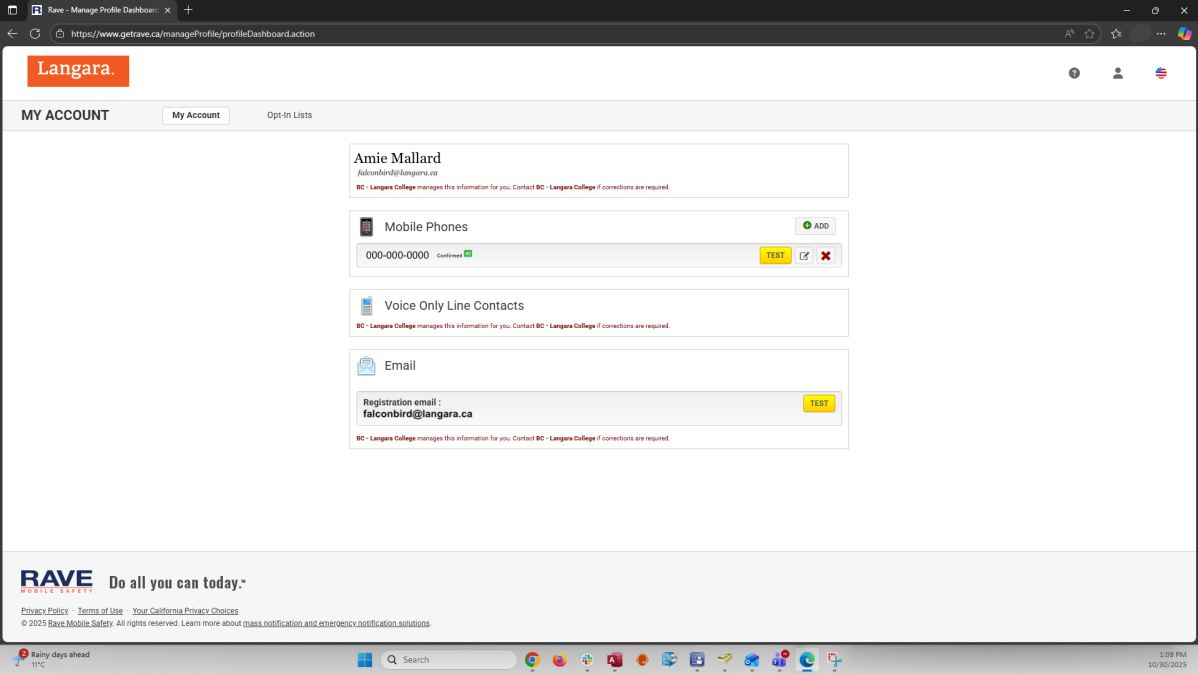
7. Once back on the homepage, your phone number should be marked as Confirmed
Note: A Langara email address is necessary to log in. Only current students who received the welcome email from Langara Alert can complete the steps above. If you have not started your first semester, please wait for the welcome email from Langara Alert.
Employees
To opt in or update your information:
1. Login to Workday
2. Click on your profile
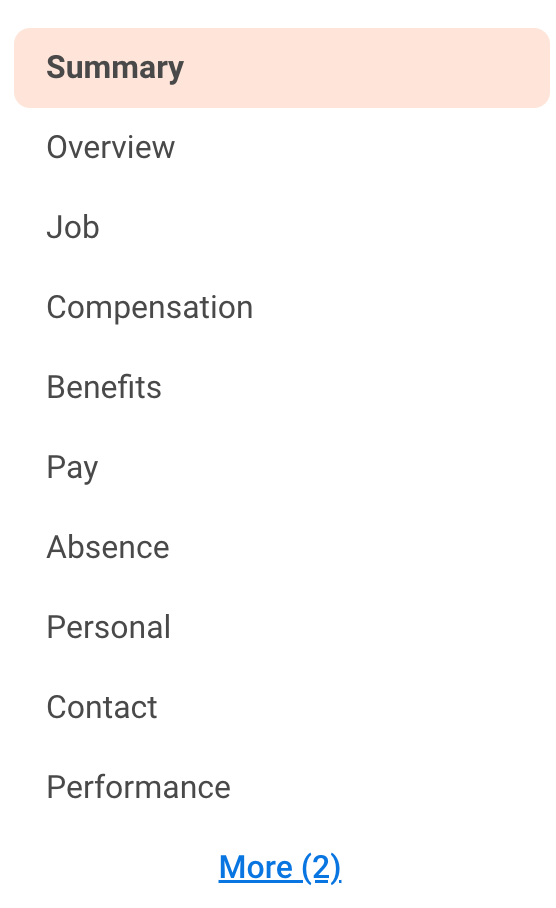
3. On the left-hand side menu find Contact info (you may need to click more to see it). See photo below.
4. Click on contact then edit > change contact info
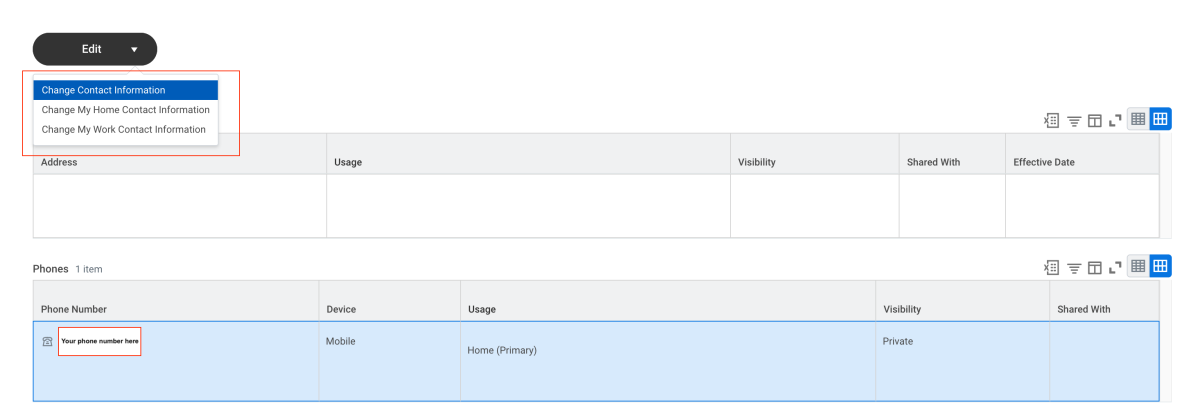
5. Scroll down to your phone number and make sure it’s updated.
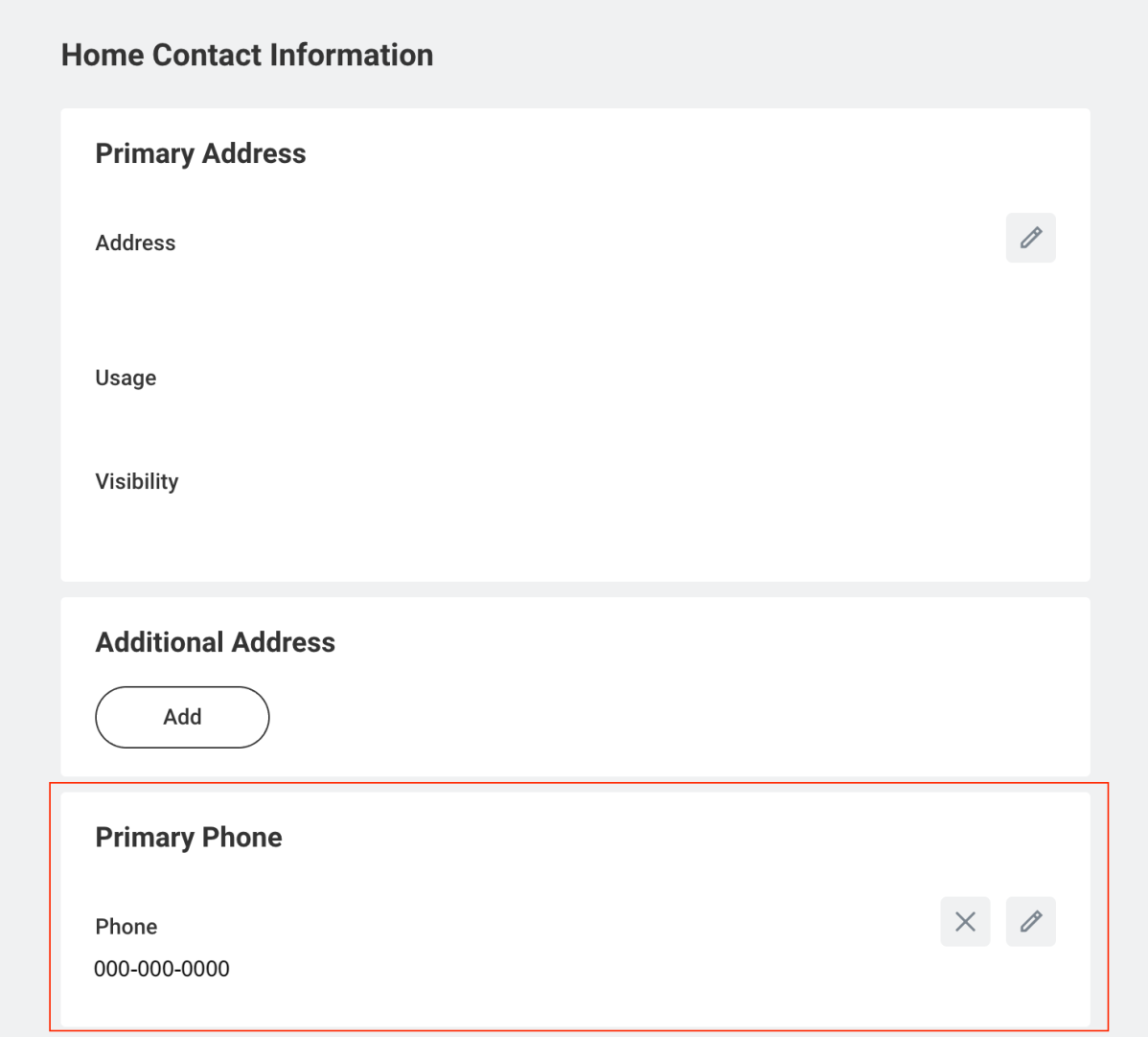
6. Once you’ve updated it, click Submit.
When you'll receive alerts
If a critical situation occurs, you’ll receive a short message at the contact point you have provided to the College, either by SMS/text message (if provided) and email. Langara Safe app users will also receive a notification.
Langara Alerts will be used to notify the College community in the following situations:
- Events that may affect your safety on campus (e.g. chemical spill, bomb threat, or a dangerous person)
- Campus closure due to severe weather, power outage, or other serious incidents
- Safety or security events requiring you to take protective action, leave, or avoid campus
- Update when a situation has been resolved.
- Any other event that may affect classes or campus operations
When you receive an alert, stay calm and follow the instructions provided in the message or by Campus Security, police or fire personnel.
How to recognize official alerts
With so many scam texts and emails circulating, it’s important to know what official Langara Alerts look like:
- Email notifications will come from Langara Alert: do-not-reply [at] alert.langara.ca (do-not-reply[at]alert[dot]langara[dot]ca)
- The subject line will clearly describe the incident
- To prevent the message from being sent to your junk folder, please add this address to your safe sender list.
- Text (SMS) notifications will come from 67283
The system is managed by Rave Alert, using secure servers and backups located in Canada. Your personal contact information remains confidential and is not shared outside the College.
Receiving Alerts
When joining Langara College as an employee or a student, you will receive an automatic email from Langara Alert, confirming your participation and providing SMS opt-out instructions if desired.
Please note: by providing a mobile number, you provide consent and authorize the College to contact you with urgent notifications by text, in line with emergency communication protocols. You will be able to START or STOP receiving texts at any time.
While Langara does not charge for this service, standard carrier messaging fees may apply. SMS delivery is subject to network availability and cannot be guaranteed.
Updating your info
If you change your mobile number, update your contact information to continue receiving alerts:
Students
1. Visit: https://www.getrave.ca/login/langara
2. Review the Terms of Use and click on Submit
3. Once on the main homepage, find the Mobile Phones section and click Add
4. Enter your mobile number and click on Continue
5. Confirm your mobile carrier from the list and click on Continue
Langara Alert will send you a confirmation code to your mobile number
6.Enter the Confirmation code and click on Continue. When all the steps are complete, click on Done.
7. Once back on the homepage, your phone number should be marked as Confirmed
Note: A Langara email address is necessary to log in. Only current students who received the welcome email from Langara Alert can complete the steps above. If you have not started your first semester, please wait for the welcome email from Langara Alert.
Employees
To opt in or update your information:
1. Login to Workday
2. Click on your profile
3. On the left-hand side menu find “Contact info” (you may need to click "more” to see it). See photo below.
4. Click on contact then edit > change contact info
5. Scroll down to your phone number and make sure it’s updated.
6. Once you’ve updated it, click Submit.
Opting out
Students and employees can opt out of SMS/text messages but not from email alerts.
To manage your text alert preferences, START (To opt in) or STOP (To opt out) to 67283.
Emergency contact
Langara Alerts will not use your emergency contact. Your emergency contact information only applies in case of an emergency related only to you.
For questions or concerns, please contact safety [at] langara.ca (safety[at]langara[dot]ca)
