Academic Support Kaltura and Digital Audio/Video
Langara has numerous tools to support the creation, editing, and sharing of audio and video content.
Select from the following to learn more:



Langara uses Kaltura to host and share media. All staff, instructors, and students can upload, create, and share media using Kaltura. Users can access this tool in 2 ways:
Brightspace My Media
My Media is a tool built into Brightspace that allows users to upload and record media, access media added to MediaSpace, and insert media into content, discussions, and assignments. For more information, read about Brightspace My Media.
MediaSpace
MediaSpace is a standalone video platform where users can upload, edit, manage, organize, and share media. Access Langara MediaSpace and log in using your Langara email and password. Read more about MediaSpace Video Portal.
EdTech recommends using Brightspace My Media to create, upload, import, and share video. Use MediaSpace for advanced media management such as creating channels and playlists.
For more information, search for answers in the Kaltura Knowledge Center and review Frequently asked questions.
Uploading, Creating, and Sharing Media
Uploading, Creating, and Sharing Media in Brightspace
Anywhere the Brightspace Editor is present (potentially Assignments, Discussions, and Quizzes for students), the My Media tool is available.

To add media in Brightspace, open the Insert Stuff menu.

Scroll down to select My Media.

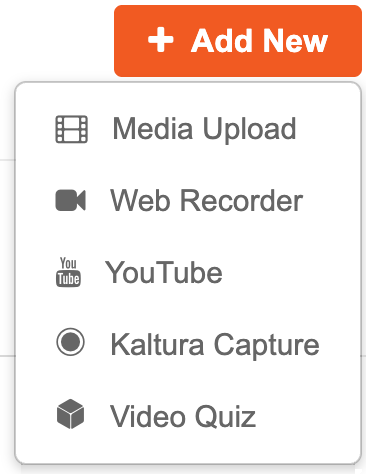
Select existing media or open the Add New menu to upload a video from your device or import content from YouTube.
To record content in Brightspace My Media select Kaltura Capture (desktop application) or Web Recorder (browser tool) in the + Add New menu.
Both of these tools allow users to record audio, video, and capture a device screen.
For more information, read about using Kaltura Capture in Brightspace and Web Recorder in Brightspace.
Once you have your desired media, select Embed and then Insert.
Sharing Media in Brightspace
In addition to embedding media as described above, media can shared via link in Brightspace or for instructors, added via Add Kaltura Media in the Existing Activities menu of the Content tool. If you wish to share the link to the video, you must change the Publishing Status to Unlisted or, if you have a MediaSpace channel, Published. Note: this setting can only be change on Langara MediaSpace.
Based on Langara policy B3006 - Intellectual Property (PDF, 74KB) and policy B5010 - Recorded Information Management (PDF, 135KB) EdTech is not responsible for storing media. Always keep a copy of content on your computer and/or Langara OneDrive.
Uploading, Creating, and Sharing Media in MediaSpace
Uploading Media in MediaSpace
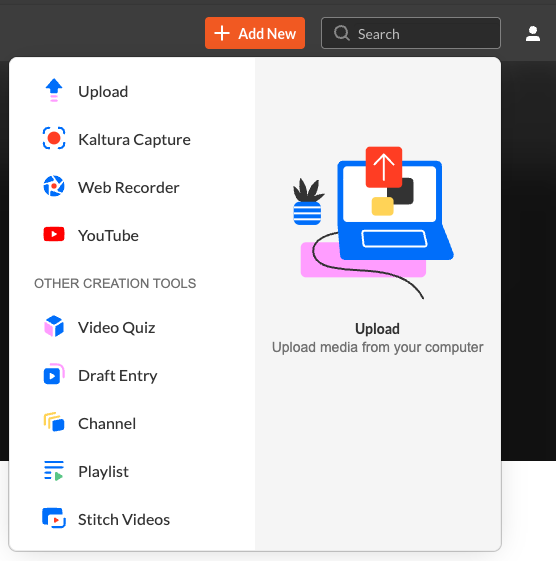
In Langara MediaSpace open the + Add New menu and select Upload to add a prerecorded video file from your computer. Follow the on-screen instructions to upload your video, including adding a descriptive title and choosing your desired publishing status. Click Save when done.
Review uploading media from your desktop to your video portal for more details. Read more about using the Add New menu to add media to MediaSpace, including how to add YouTube videos to your Kaltura video portal.
Create Media in MediaSpace
MediaSpace has two tools for recording media in the + Add New menu: Kaltura Capture (desktop application) and Web Recorder (browser tool).
Both of these tools allow users to record audio, video, and capture a device screen.
Sharing Media from MediaSpace
Note that new uploads are set to Private by default. Private allows you to embed the video in Brightspace using My Media, but not share the link to the video. If you wish to share the link to the video, you must change the Publishing Status to Unlisted or, if you have a MediaSpace channel, Published. MediaSpace content can be embedded and shared via link.
Based on Langara policy B3006 - Intellectual Property (PDF, 74KB) and policy B5010 - Recorded Information Management (PDF, 135KB) EdTech is not responsible for storing media. Always keep a copy of content on your computer and/or Langara OneDrive.
Closed Captions
Closed captions are automatically generated for all uploads to My Media and MediaSpace.
Closed captions provide a text equivalent of all audio elements in a video, presented visually in time with the video. Closed captions can be toggled on or off by the viewer. Closed captions are important as they help many viewers but are essential for Deaf and hard of hearing people.
Read more about closed captions.
Adding and Editing Closed Captions
Closed captions are automatically generated for all uploads to My Media and MediaSpace. For more information on ordering captions, review order captions and view orders.
However, captions must be edited for accuracy.
To edit captions:
- Access My Media in Brightspace via the My Tools menu or on Langara MediaSpace.
- Select media.
- Open Actions menu.
- Choose Edit.
- Move to the Captions tab.
- Select Edit Captions.
- Edit captions for accuracy.
- Click Save.
- Adjust the caption accuracy slider.
- Click Save.
For more details, review edit captions using the closed captions editor.
You can also upload captions to My Media in SRT or VTT format.
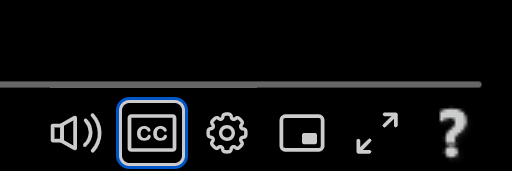
Videos with captions will display a CC icon in the player toolbar.
When a video has captions, a transcript is automatically generated. View the transcript by selecting the Transcript icon in the top right of the player window. Use the transcript to follow along, skip to a specific timestamp, or search through the video.
Editing Video
Both Brightspace My Media and MediaSpace have limited editing tools.
Editing Media
Access the video editor:
- Access My Media in Brightspace via the My Tools menu or on Langara MediaSpace.
- Select media to be edited.
- Open Actions menu.
- Choose Edit.
- Select Launch editor.
The video editor helps users:
Learn more about editing video in MediaSpace.
Downloading, Deleting/Restoring, or Replacing Media
Downloading media
To avoid losing media, EdTech recommends users keep a copy of their media added to MediaSpace on your computer or in your Langara OneDrive account.
Anything created with Kaltura Capture will be stored on your computer until deleted. Refer to the Kaltura Capture folder directory to find where recordings are stored on your computer (for Windows users, the AppData folder may be hidden by default).
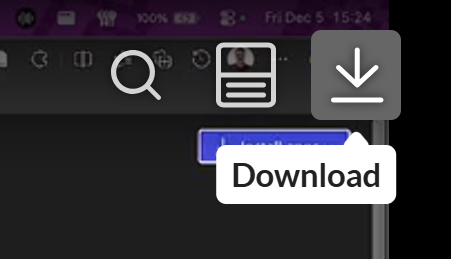
However, for media already uploaded, we recommend downloading a copy. To download from My Media:
- Go to the media you'd like to download
- Open the Actions menu and choose Edit.
- In Edit mode, select the Download button in the top right corner of the video.
For more information, read how to download media from MediaSpace. If you wish, you may allow others to download your media.
Downloading captions
You may wish to download caption files for backup or for use on another platform. To download caption files from My Media:
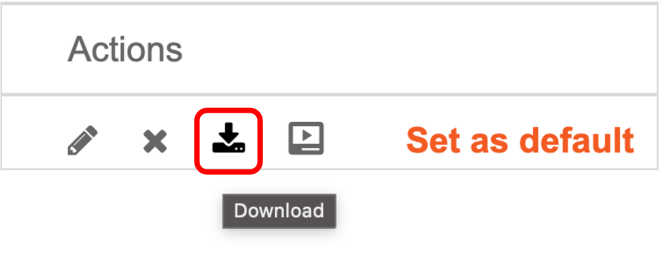
- Navigate to the media page for your video.
- Choose Actions > Edit.
- Move to the Captions tab.
- Select Download in the Actions group.
Deleting/Restoring media
To delete media and remove it from MediaSpace and My Media:
- Access My Media in Brightspace via the My Tools menu or on Langara MediaSpace.
- Choose media to be deleted.
- Open the Actions menu and choose Delete.
- Confirm by selecting Delete in the pop-up message.
Deleting media will move it to the MediaSpace Recycle bin for 30 days.
Learn how to restore deleted items from the recycle bin.
For more information, read how to delete media in Video Portal.
Replacing media
In some instances, it may make sense to update a video without replacing the URL, metadata, or play counts. To replace media:
- Access My Media in Brightspace via the My Tools menu or on Langara MediaSpace.
- Select media to be replaced.
- Open the Actions menu and choose Edit.
- Move to the Replace Media tab.
- Select Choose file to upload.
- Upload your replacement media.
- Once uploaded, select Approve replacement.
For more information, consult Replace media in the Kaltura Knowledge Center.
Collaboration and Ownership
Adding a collaborator
Depending on context, it may be useful to add a collaborator to a MediaSpace entry. Collaborators can, depending on settings, view, edit, or publish media.
- Access My Media in Brightspace via the My Tools menu or on Langara MediaSpace.
- Choose media.
- Select Edit.
- Move to the Collaboration tab and select Add Collaborator.
- Type the collaborators user name (if they do not appear, ask them to sign in to MediaSpace).
- Choose the desired type(s) of collaboration permissions.
- Select Add.
For more, read Add & manage collaborators on your media.
Transferring ownership
Under certain circumstances, it might be useful to transfer ownership of your media. Changing the media ownership will remove the item from My Media and remove all of your rights to the item.
- Access My Media in Brightspace via the My Tools menu or on Langara MediaSpace.
- Choose media.
- Select Edit.
- Move to the Collaboration tab and select Change media owner.
- Start typing the username of the new owner in the “Enter user name” field.
- Select it once it appears.
- Click Save.

Clipchamp is Microsoft's video capture and editing software. Use Clipchamp to record audio and video, screen capture, and edit media. Clipchamp saves to your Langara OneDrive cloud storage for easy access anywhere.
Clipchamp Resources
Use Clipchamp to make a screen recording.
Record your webcam with Clipchamp.
Explore Clipchamp features for additional tools and features. Review the Microsoft Clipchamp resource directory for a complete Clipchamp guide.
If you'd like to share what you've made in Clipchamp, consider uploading your media to MediaSpace.
Audacity is the world’s most popular free software for recording and editing audio. So if you’re producing music, a podcast, or just playing around with audio, Audacity is for you. Download Audacity for Windows, macOS and Linux. Audacity is also available on Langara computers.
Audacity Resources
Read more About Audacity for a general overview of the software.
For step-by-step Audacity guides, consult:
For additional information, review:
For a brief introduction to the basics of Audacity, consider the following video:
Additional Resources
Copyright Considerations
Educational exceptions in the Canadian Copyright Act allow specific uses of copyrighted work for educational purposes, without payment or permission from the copyright owner, provided certain conditions are met. For example, an instructor may show a video they do not own in class. For more information, consult the Educational Exceptions Research Guide.
For general information regarding copyright, consult the Langara Library's copyright guide.
Media Retention Policy
Media is periodically deleted from MediaSpace storage.
Deletion Schedule
Media Cleanup takes place once per year, after the end of the Spring semester. This deletion only affects entries with zero (0) plays in the prior 12 months (for the 2026 cleanup, since January 1st, 2025). Please refer to the timeline below.
Deletion Timeline
Due to unforeseeable circumstances, the current Media Cleanup cycle is on hold. More information, including an updated timeline, will be emailed to users and listed on this page when available.
- March 9th, 2026: kalturacleanup2026 tag is added to all media that is eligible for cleanup
- June 1st, 2026: all media that has 0 plays since January 1st, 2025 is moved to the user's Recycle Bin; users may restore items back to their main library at any time in the next 30 days
- June 30th/July 1st: Items deleted by the Cleanup are removed from the Recycle Bin and permanently deleted; deleted items are unrecoverable
Why does media need to be deleted?
Space on the Kaltura Cloud is limited, and Langara College pays a premium when storage exceeds our allotted space. Because of this, and because Kaltura is intended to host media being actively used for teaching and learning, users are advised to only keep media in their My Media library that is currently in use. Media entries created for one-time applications, or content meant for the use of a specific course that will not be immediately re-used, do not need to be kept on Kaltura long-term. Consider deleting your own media.
Based on Langara policy B3006 - Intellectual Property (PDF, 74KB) and policy B5010 - Recorded Information Management (PDF, 135KB) EdTech is not responsible for storing media. Always keep a copy of content on your computer and/or Langara OneDrive.
Media that will be re-used in the more distant future, or is needed for archival purposes, can be downloaded and stored on your own devices.
Deletion Procedure
Media is kept for as long as it is in active use, and its owner is still a student or employee at Langara College. Only inactive media (with 0 plays within a given time period prior to the cleanup) is affected. If you want to make sure that your media is not deleted or otherwise affected, make sure it has been played at least once (for at least 20 seconds) before the date of the deletion.
Periodic deletions are carried out to ensure that only active media is kept on the Kaltura server.
Finding Unplayed Media
To view your media that has been tagged for deletion:
- Navigate to Langara MediaSpace and log in using your Langara email.
- Select your name in the top-right and choose My Media.
- Use the Search box to find media tagged with "kalturacleanup2026".
- Open each entry you want to keep, and click Play (you must play the media item for at least 20 seconds for it to count as played). It may take up to 24-48 hours for the new play count to update in the user interface.
Backups
Please refer to Downloading media for information about storing and downloading backups of your Kaltura media and closed captions.
Former Students and Employees
Former student and employee media is included in the regular deletion. If media will continue to be used after a user’s departure, owners should make certain to transfer ownership to another user before leaving.
Return to Student Learning Technology home to explore other tools.
Have questions?
Email online-student-support [at] langara.ca (online-student-support[at]langara[dot]ca)
